
We all work with plain text at some point in our professional lives. The text we process includes but isn’t limited to notes, drafts, meeting summaries, reports, captions, and scripts. For many of us, ideas start as plain and unformatted text. But problems occur when we need to share it with others. This is because a raw text file does not always look good.
PDF is a universally accepted format that most professionals prefer for sharing textual files. The good thing is you do not need complex software and design skills to turn plain text into a clean PDF. You can do it in a few seconds if you take the right approach.
Let’s walk through how to do it the fastest way and how to ensure that the final PDF that you get is properly formatted.
The Quickest Method of Converting Text to Formatted PDF
You can always rely on applications such as Word or Google Docs. However, they require installation or account sign-in. If your end goal is speed and you don’t want to create an account or download anything, you can use an online text to PDF converter to generate PDF from text in seconds.
We’ll use one such tool to demonstrate the process step by step.
All you have to do is paste the text and convert it immediately.
Here’s how the process works.
- Open the text to PDF converter in your browser. You will be provided with a large text box to type/paste/upload your content.
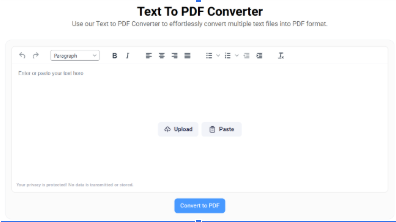
- Copy your text from anywhere you have written it. It might be a notepad file, a draft within a CMS content management system, document, or even notes from your phone.
- Paste the content in the text box. Some tools also allow uploading text files directly from the local drive. So, if you’re converting a large file, you may go with the “upload” option.
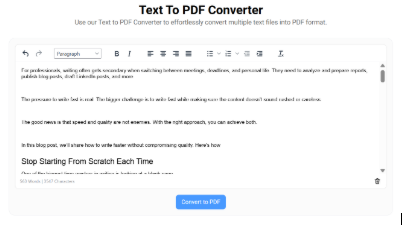
- Format the text using the provided formatting options.

- Click the convert button. The tool works with the text and prepares your file almost immediately.
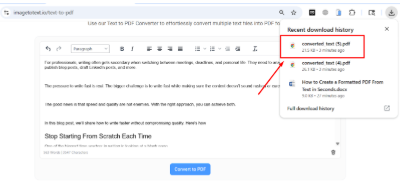
- The tool will automatically download the ready file to your device. Your formatted PDF file is now ready to share.
How to Ensure that Your PDF Looks Properly Formatted
The actual conversion is not difficult. What really matters is how your text is put together before you convert it. Clean in = clean out. You can implement the following tips in the tool’s provided input field or apply them beforehand in the original document.
Organize Your Content in a Clear Way
Don’t write long blocks of text. Large paragraphs may look messy after being converted into a PDF file.
Split your content into readable sections. Keep paragraphs reasonably short. If you are writing a report or guide, break up each section clearly, to make the layout look organized.
Separate Headings Properly
If your document contains headings or titles, ensure that the headings and titles are written on separate lines. Leave some space before and after them. This makes the PDF look organized, instead of compact.
Even if the tool does not automatically make headings look different, proper spacing makes them visually different.
Fix Line Break and Spacing Problems
Sometimes when copying text from emails or messaging apps, there are strange breaks in the copied lines. Words may wrap awkwardly or sentences may split right in the middle of the line.
Before clicking convert, scroll through the pasted text. Remove excess spaces and repair broken lines. This is a quick check to prevent formatting problems in the final file.
Review Before Converting
It sounds obvious but many people skip this step.
Read through your text one more time before converting. Correct typos, grammar errors or confusing sentences. Once you download the PDF, you will have to modify the original text and convert it again if you spot errors later on.
A 30-second review can save you a lot of extra work.
When This Method Makes the Most Sense
This approach works best if your document is text-rich. Assignments, reports, blog drafts, documentation, meeting summaries or written statements are perfect examples.
If your file needs some advanced design features, detailed tables, brand colors or complicated layouts, you might prefer a full document editor first. But for text requiring basic level editing, a text to PDF converter is more than sufficient.
It is also useful when you work on different devices. Since the tool runs in your browser, you do not need to install anything. You can convert text into PDF from a laptop, tablet, or even a phone.
Final Thoughts
Converting a plain text into a formatted PDF does not need to be time-consuming. With the right tool and a little bit of attention to structure, you can produce a clean, shareable document in seconds.
The first thing you need to do before converting your content is to focus on properly organizing it. Keep the paragraphs clear and headings separated and maintain a regular spacing. Then leave it to the tool to do the rest.
But once you get used to this workflow, it’s one of the easiest parts of your writing process to generate professional-looking PDFs out of simple text.